Open My Page and update your profile
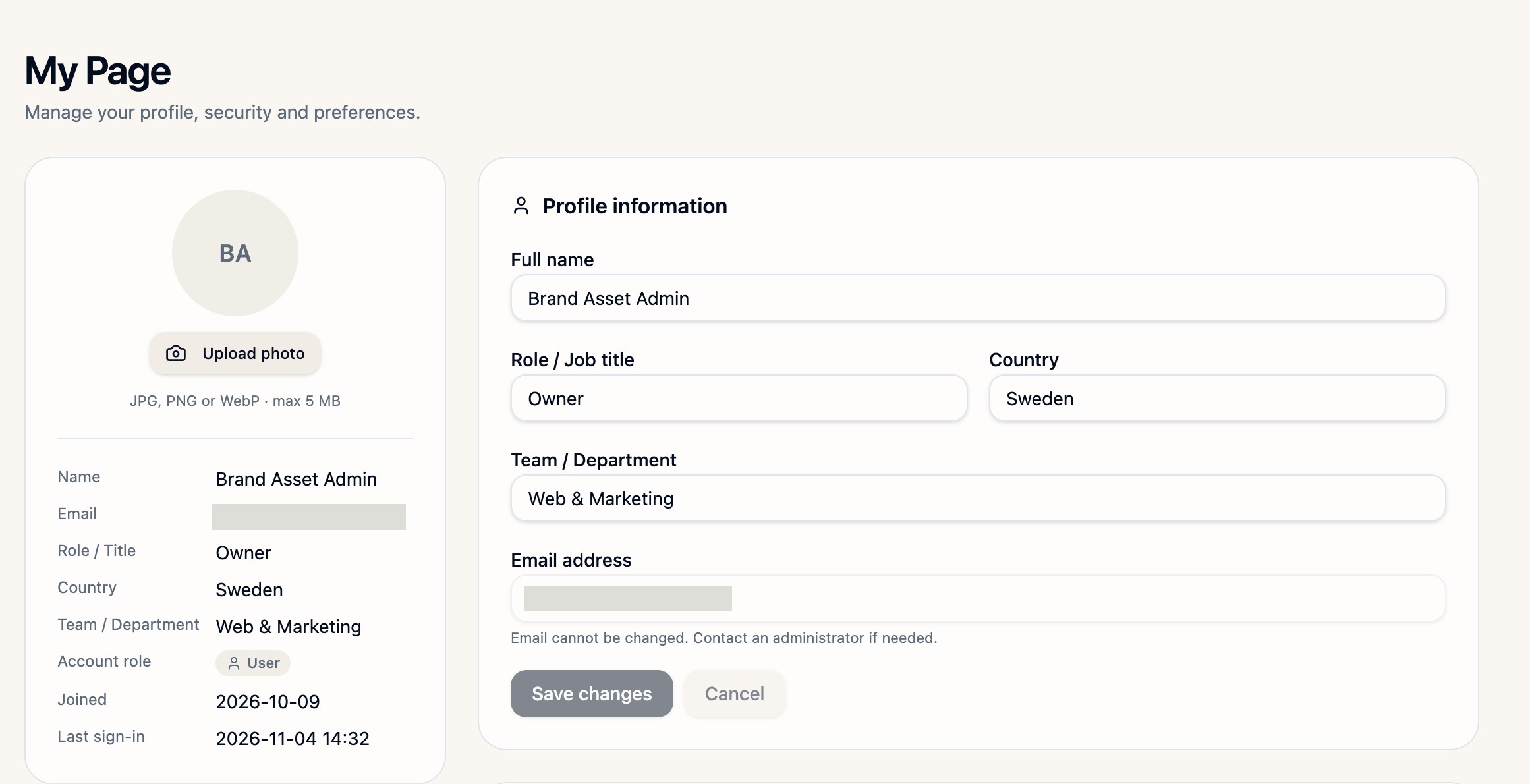
Sign in to Brand Asset, open your account menu and choose My Page. In Profile information, update Full name, Role / Job title, Country or Team / Department, then select Save changes. The job title is a profile label. Contact your administrator if you need to change your sign-in email or workspace permissions. To add a profile photo, select Upload photo and choose a JPG, PNG or WebP up to 5 MB.
Set your notification preferences
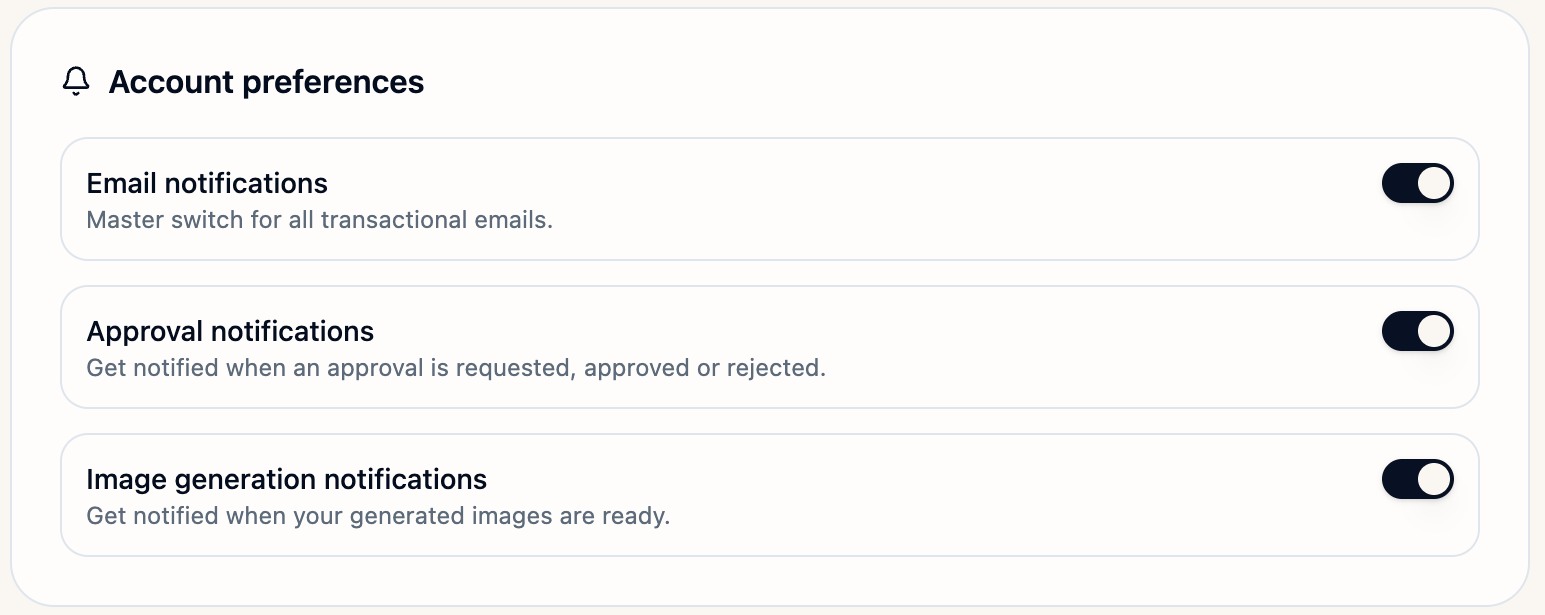
Under Account preferences, Email notifications is the main switch for transactional emails. Use Approval notifications for approval requests and decisions, and Image generation notifications for alerts when your images are ready.
Check security and change your password
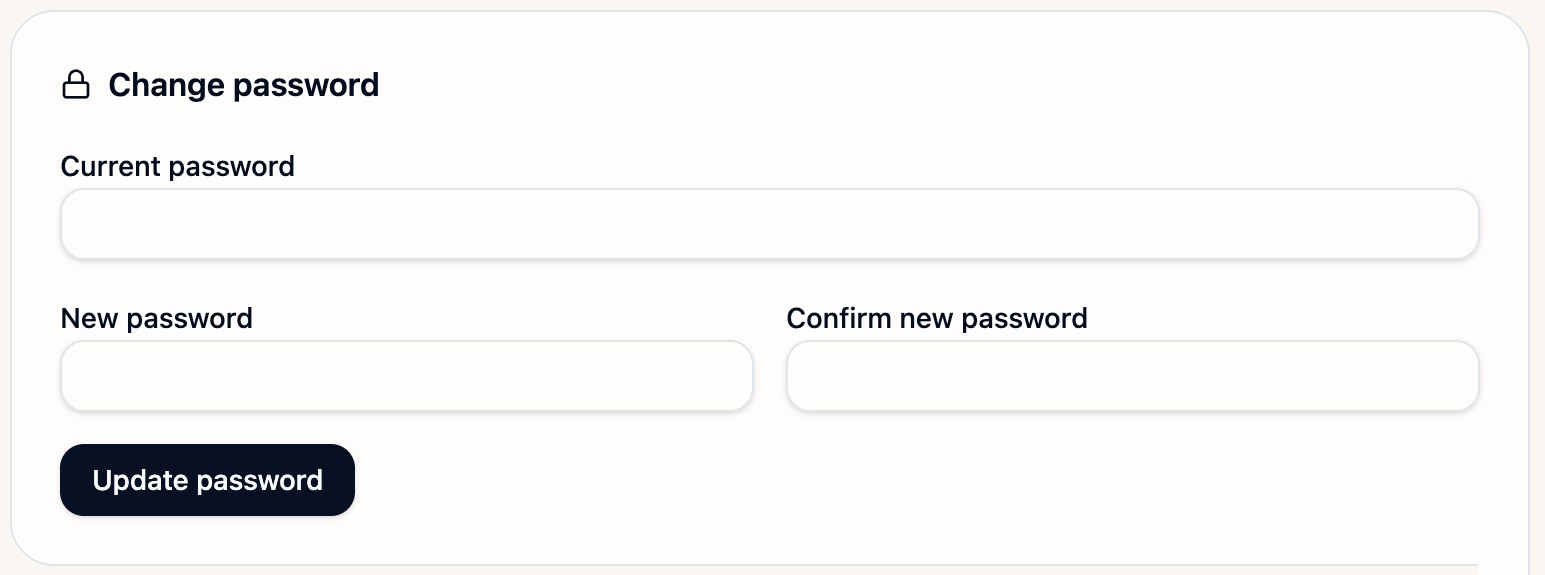
In Security, check your last sign-in, active session, account status and sign-in method. To change your password, enter Current password, New password and Confirm new password, then select Update password. If you cannot sign in, use Forgot your password? on the sign-in screen.
Find your recent work
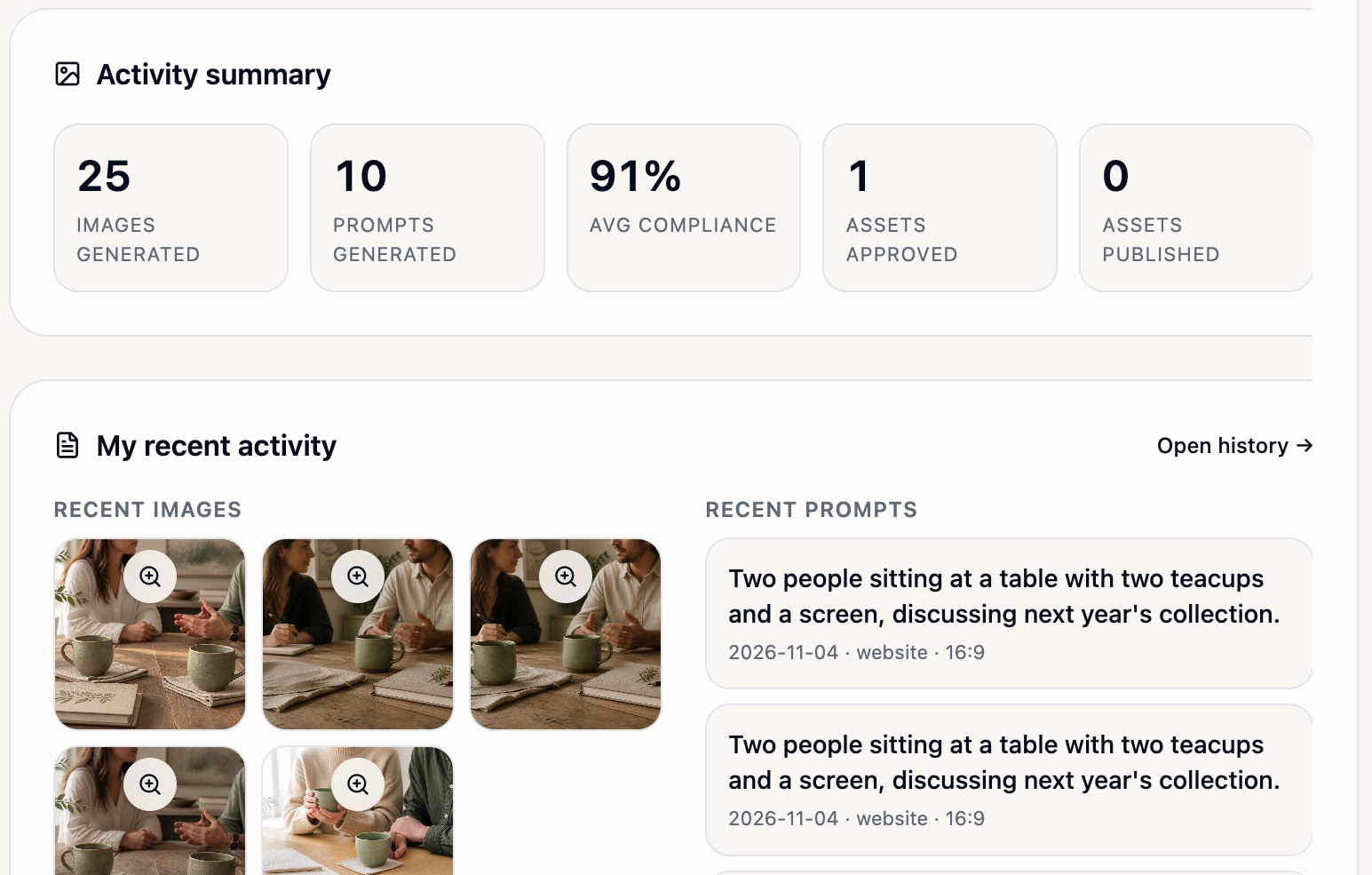
Use Activity summary to see your generated images and prompts, average compliance, and approved and published assets. Under My recent activity, select the magnifier on a recent image to preview it, or choose Open history to find earlier work.
The screenshots show an example account. Your activity and preferences reflect your own account.