Open the review queue
Open Approvals and select Waiting for review. Find the correct image and revision. Ask another reviewer to handle your own submission.
Check the image against the brief
Review the campaign, channel, format and compliance warnings. Check the composition and colours against the Brand Guide. For Product Staging, compare Staged result with Original product photo and check important product details.
Make a decision
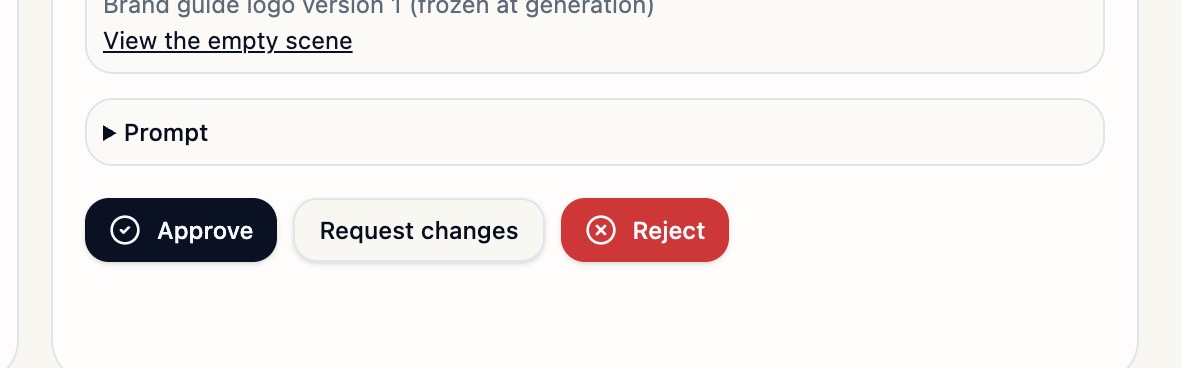
Select Approve if the image is ready, Request changes if a specific edit can fix it, or Reject if it needs replacing. Give concrete feedback, for example “Move the mug to the right so the headline fits on the left.”
Review the revision
Open the latest submission, compare it with the previous decision and check that the requested change was made. Confirm the resulting status in Approvals.
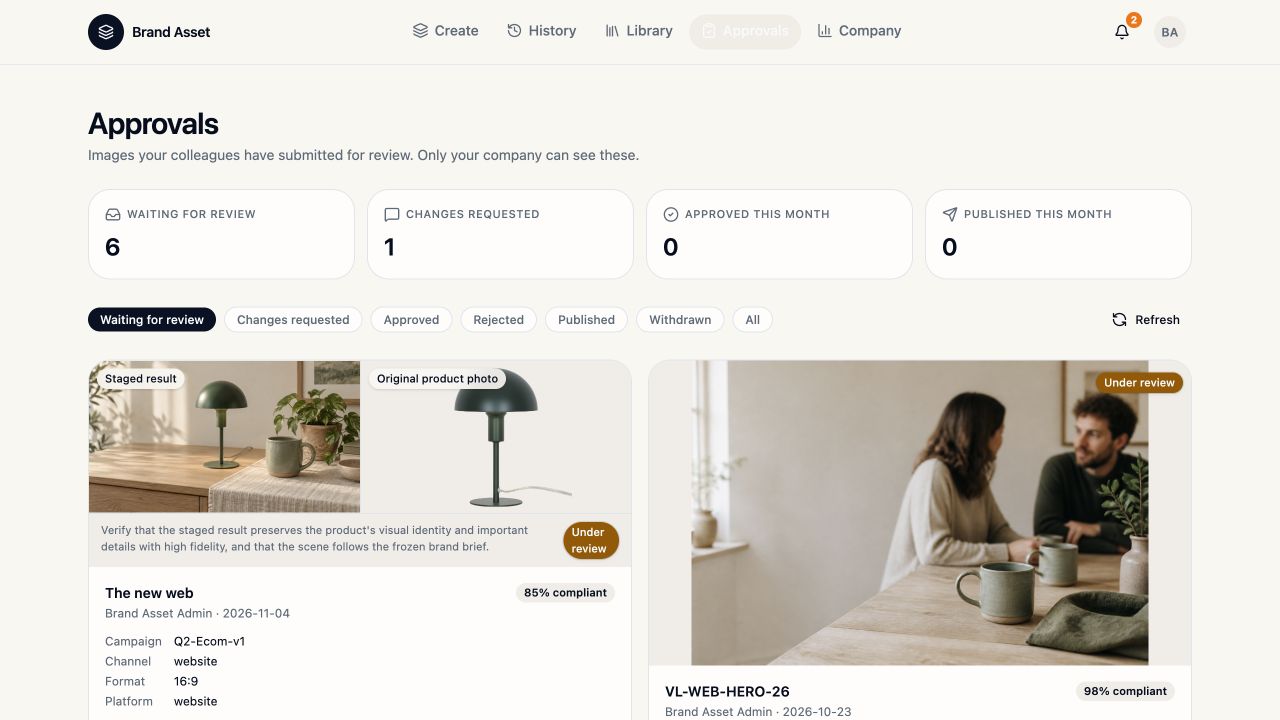
The queue was checked with Company Admin access. Dedicated Approver access and a new decision still need verification.